Local AI Hub User Guide
Version 6.0 | iOS and Android | English
1. Getting Started
Welcome to Local AI Hub - your app for local AI models. This app lets you chat with AI models running on your own server or locally on your computer.
Requirements
- iOS: iPhone or iPad with iOS 16 or later
- Android: Smartphone or tablet with Android 8.0 or later
- A server running Ollama or OpenWebUI (local or remote)
- Network connection to your server
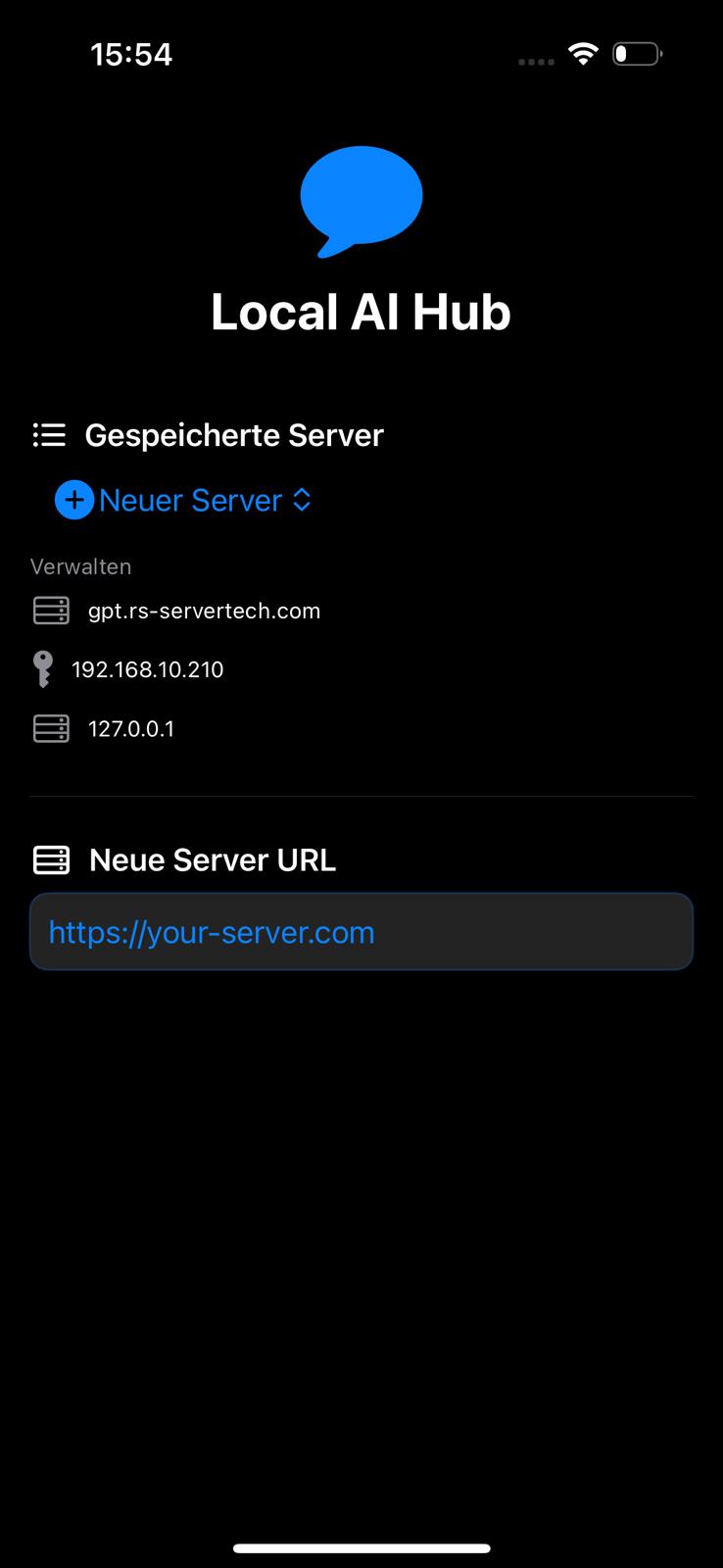
Start screen with server selection
2. Server Connection
Local AI Hub supports various server types:
Ollama (Local)
For local use on your Mac. Default address: http://127.0.0.1:11434
OpenWebUI / Gateway
For remote servers with user authentication. Enter your server URL and log in with email and password.
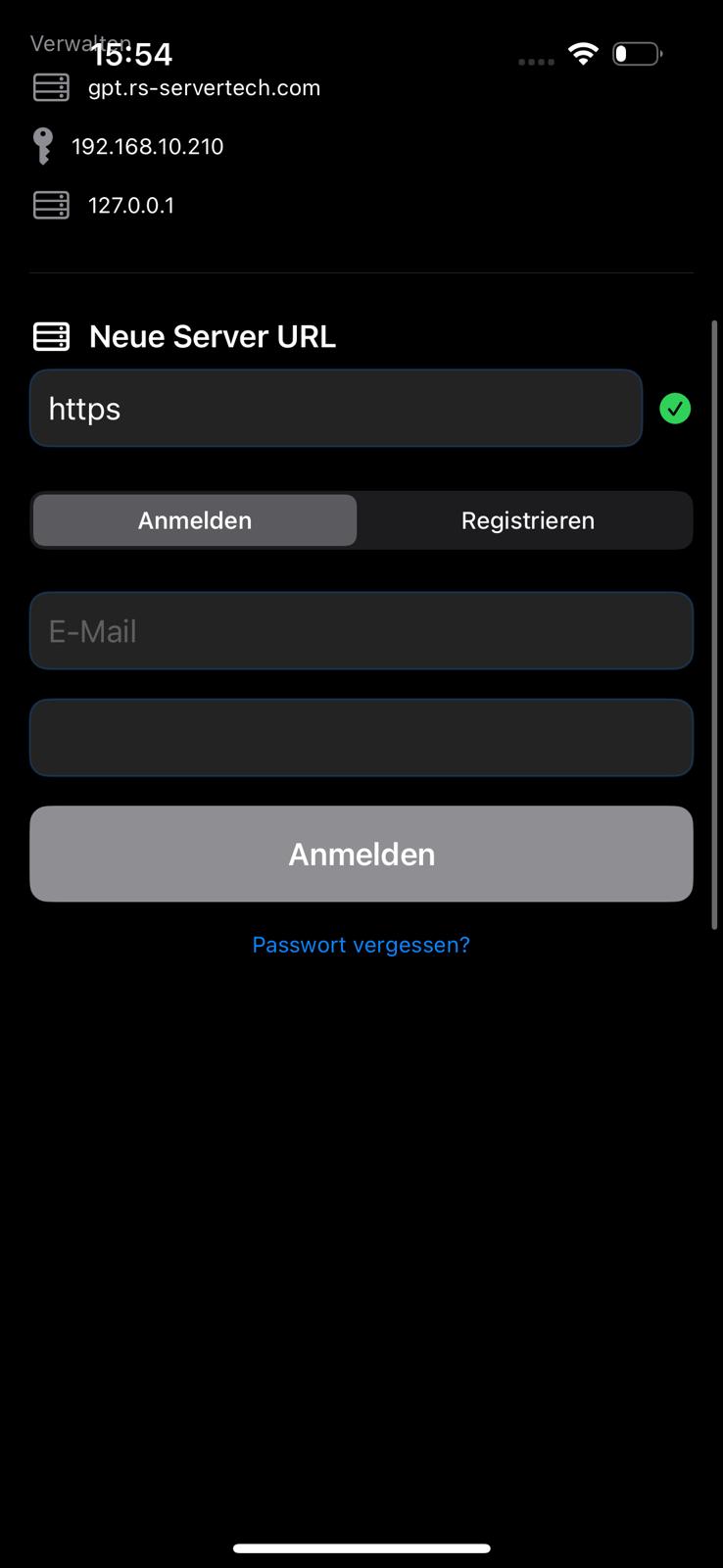
Server login
3. Chat Features
Chat is the heart of Local AI Hub.
Start a New Chat
- Tap the + icon or "New Chat"
- Select an AI model
- Type your message and send it
Chat list with sidebar
Chat options
Chat Settings
Tap the three dots in the top right to:
- Switch models
- Set a system prompt
- Adjust temperature (creative vs. precise)
- Export or delete the chat
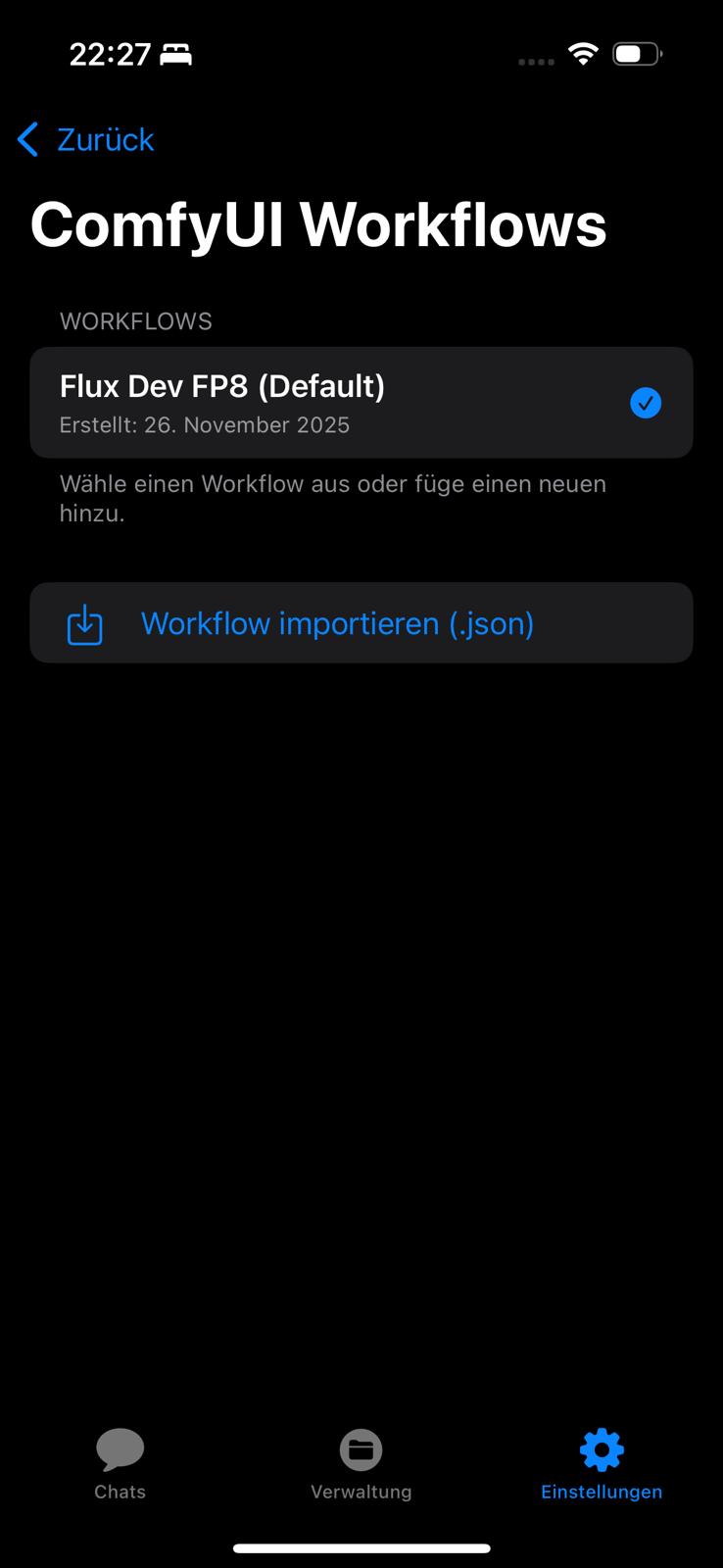
Chat settings
Send Files and Images
Tap the + icon next to the text field to:
- Select files (PDF, TXT)
- Choose photos from gallery
- Take a new photo
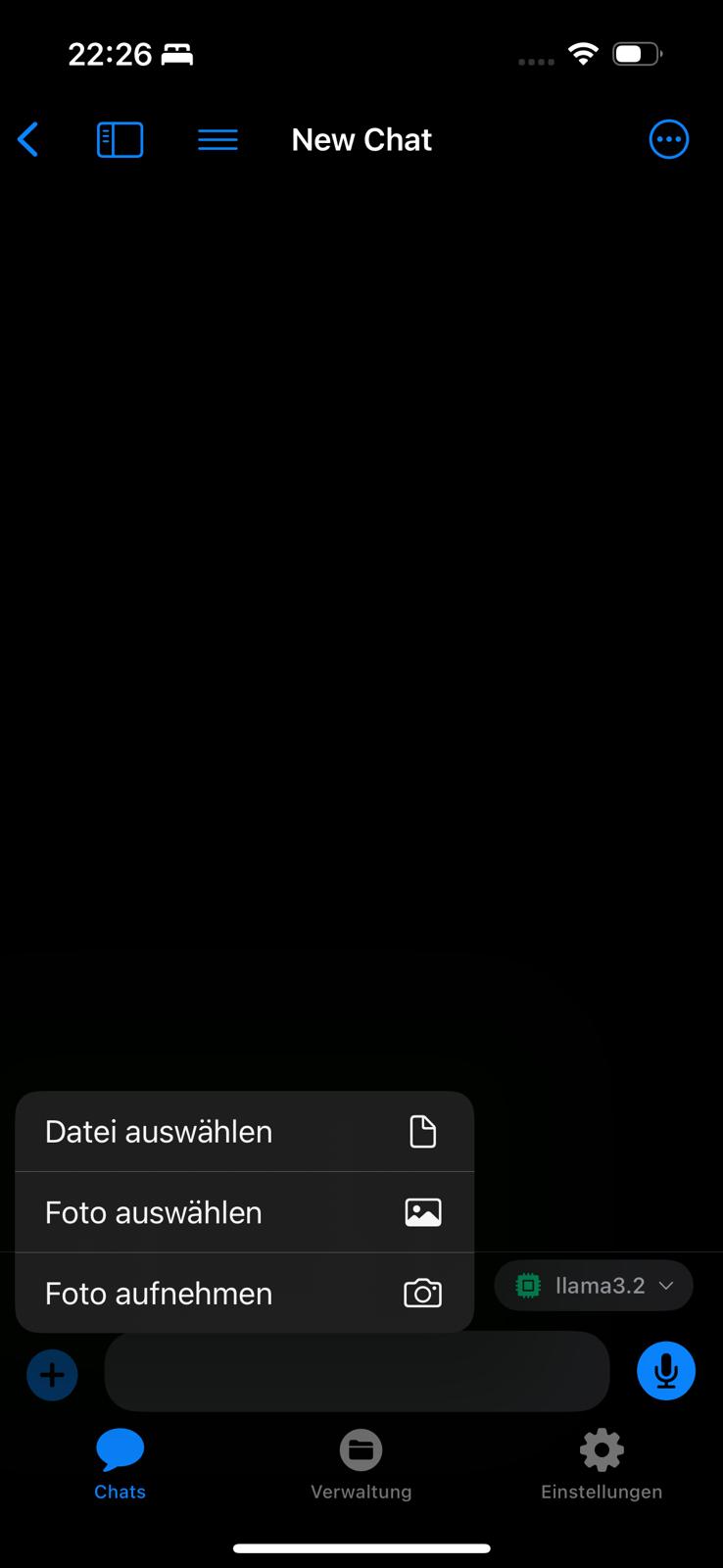
File and photo upload
4. AI Models
Local AI Hub displays all models available on your server.
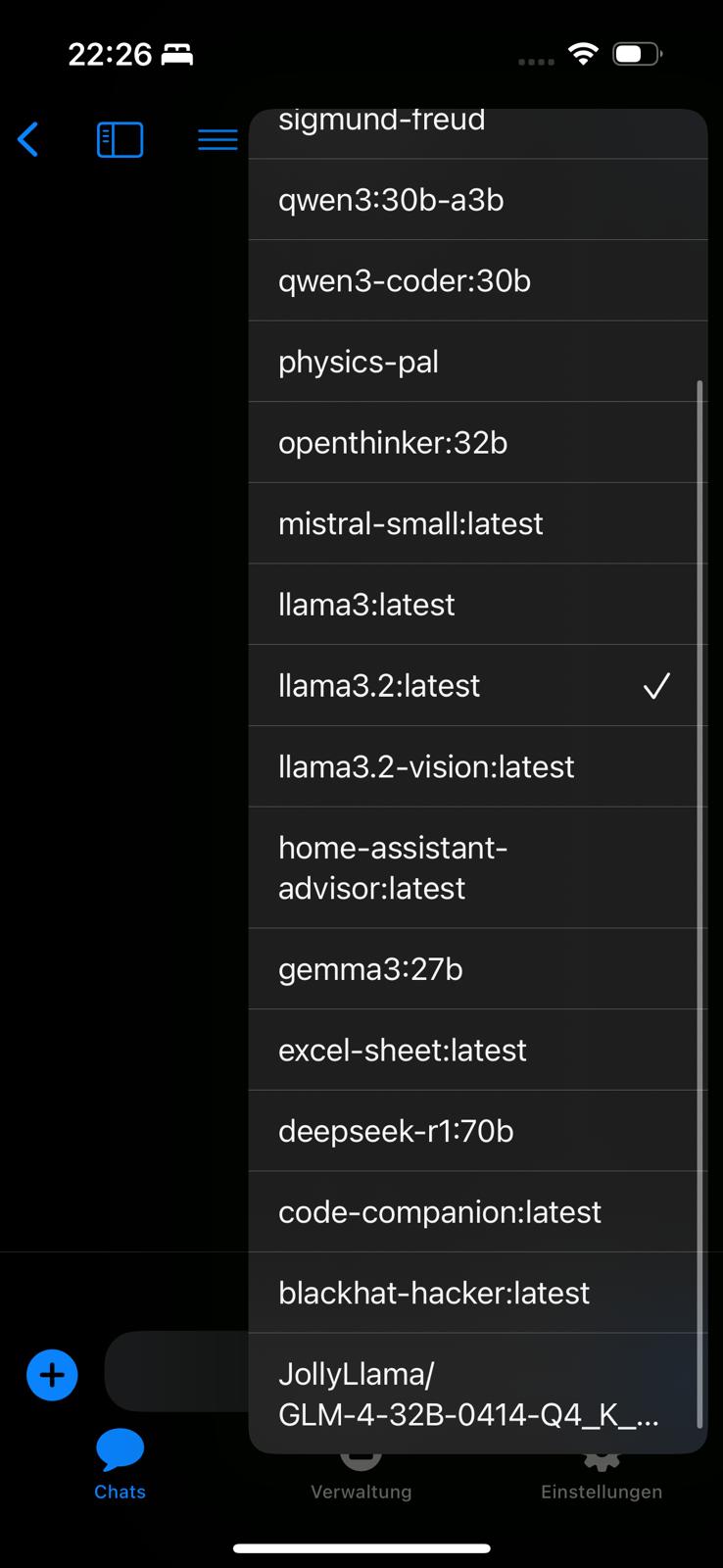
Available AI models
Popular Models
- llama3.2 - Fast and versatile
- mistral - Good balance of speed and quality
- qwen3-coder - Specialized for programming
- llama3.2-vision - Can analyze images
- deepseek-r1 - For complex tasks
5. Image Generation
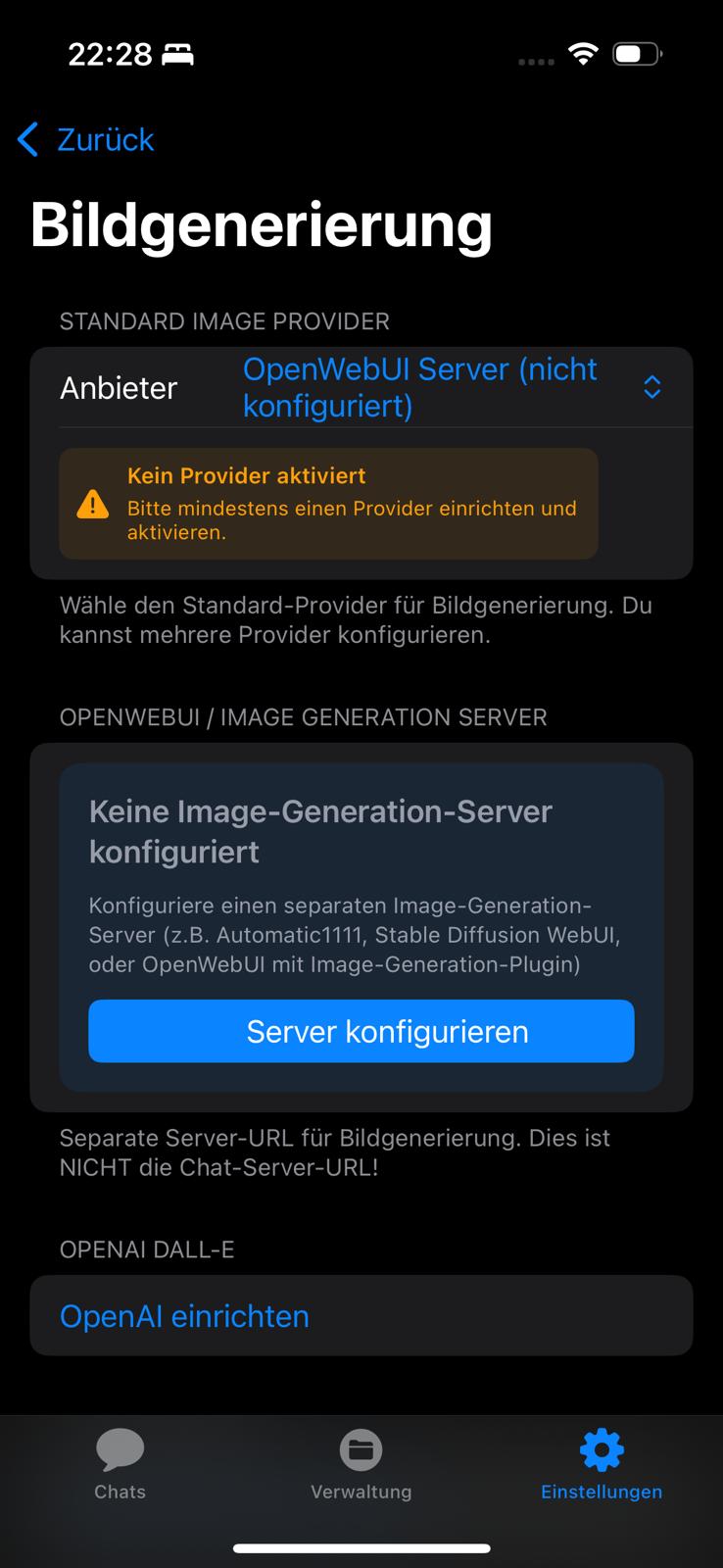
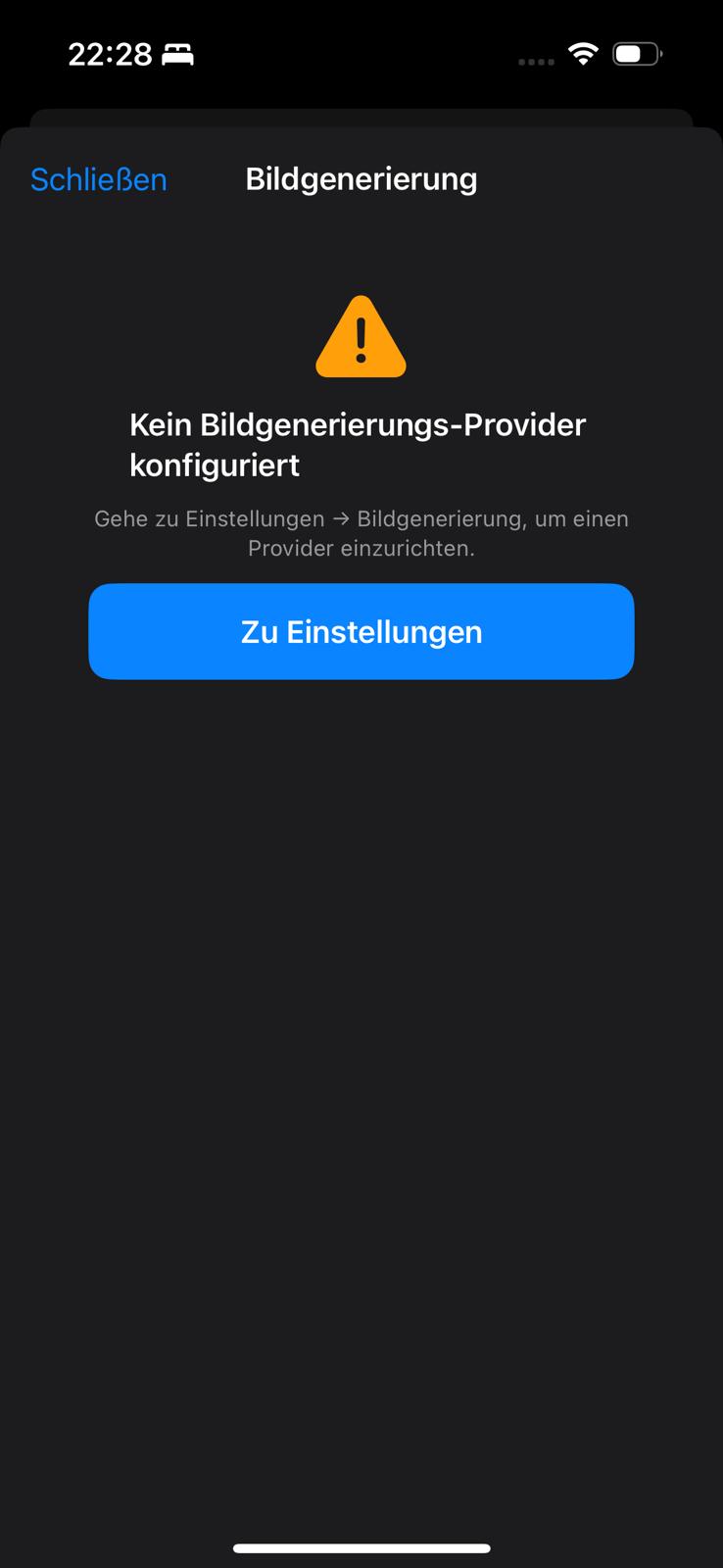
Local AI Hub can also generate images - provided you have a configured server.
Supported Providers
- OpenWebUI with Image Generation Plugin
- ComfyUI with custom workflows
- OpenAI DALL-E
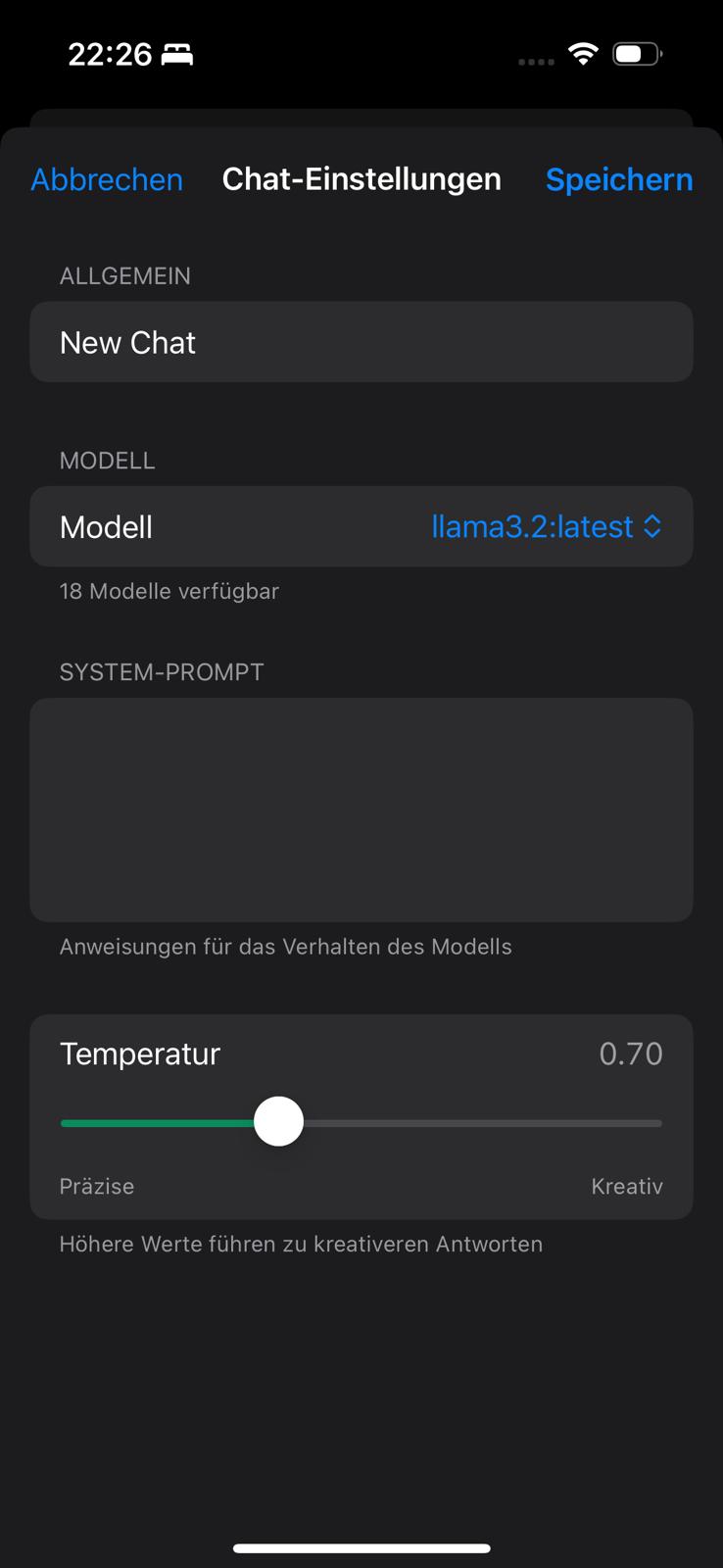
Configure image generation
ComfyUI Workflows
ComfyUI Workflows
You can import your own ComfyUI workflows as JSON files. Go to Settings - Image Generation - ComfyUI Workflows.
6. Management and Folders
Organize your chats and profiles in the management area.

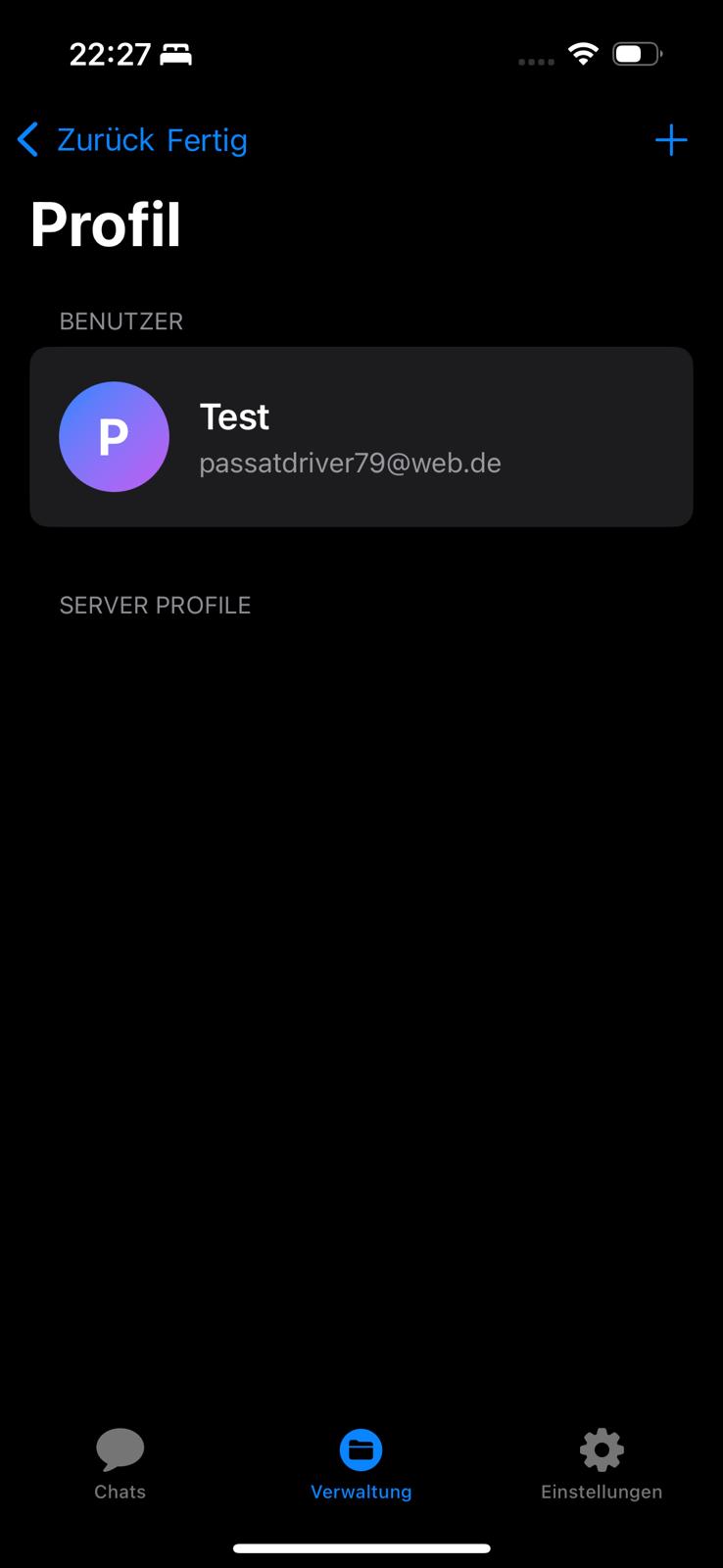
Management area
Profile overview
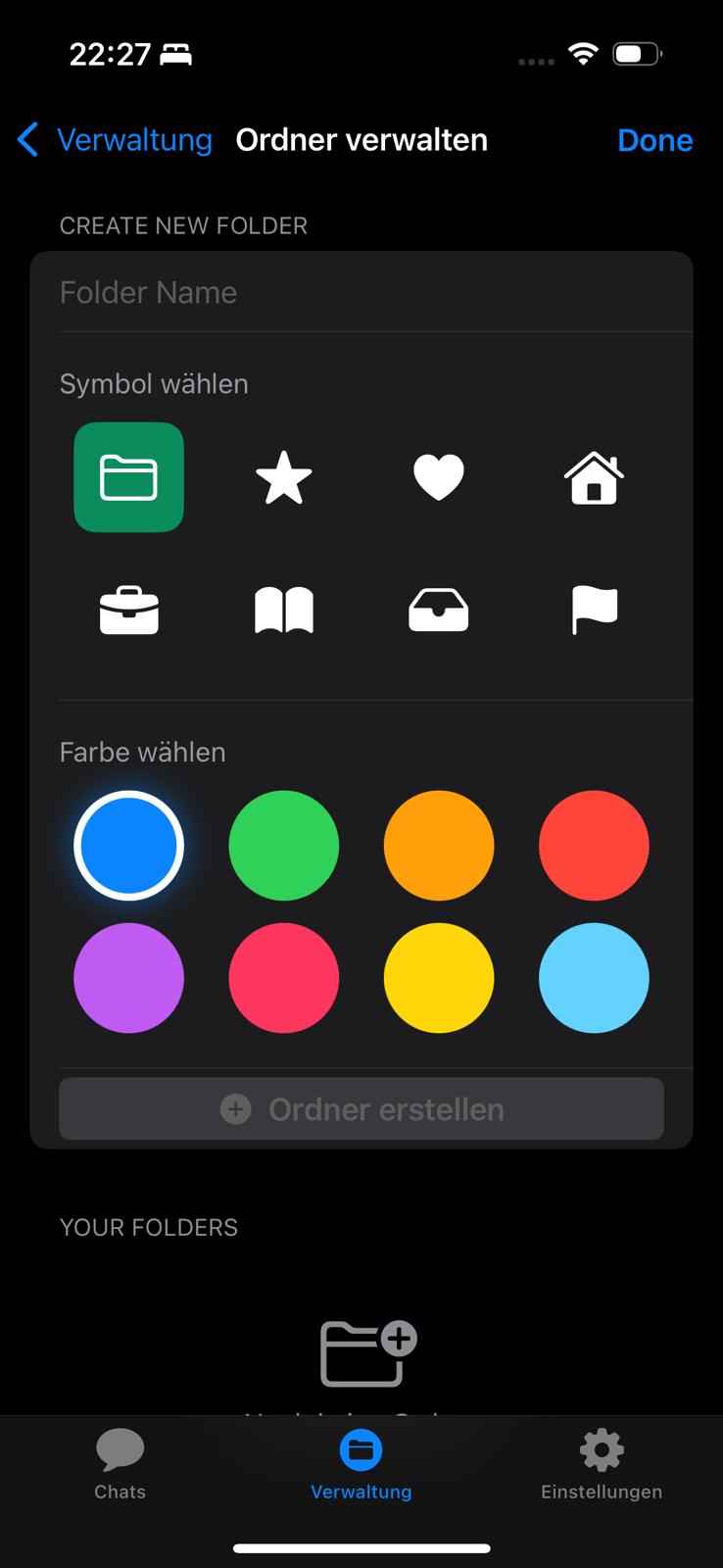
Create Folders
Create folders to organize your chats. Choose an icon and color for each folder.
Folder with icon and color
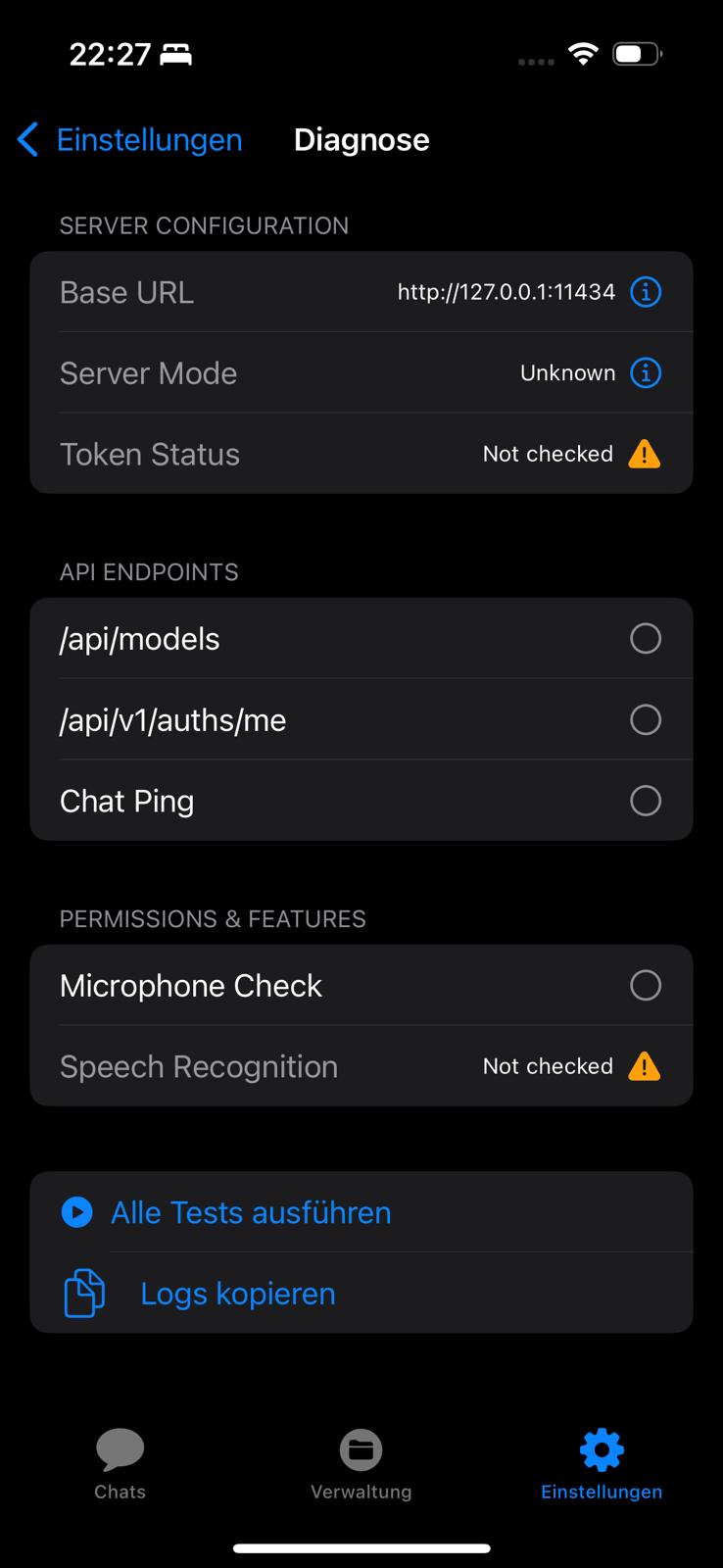
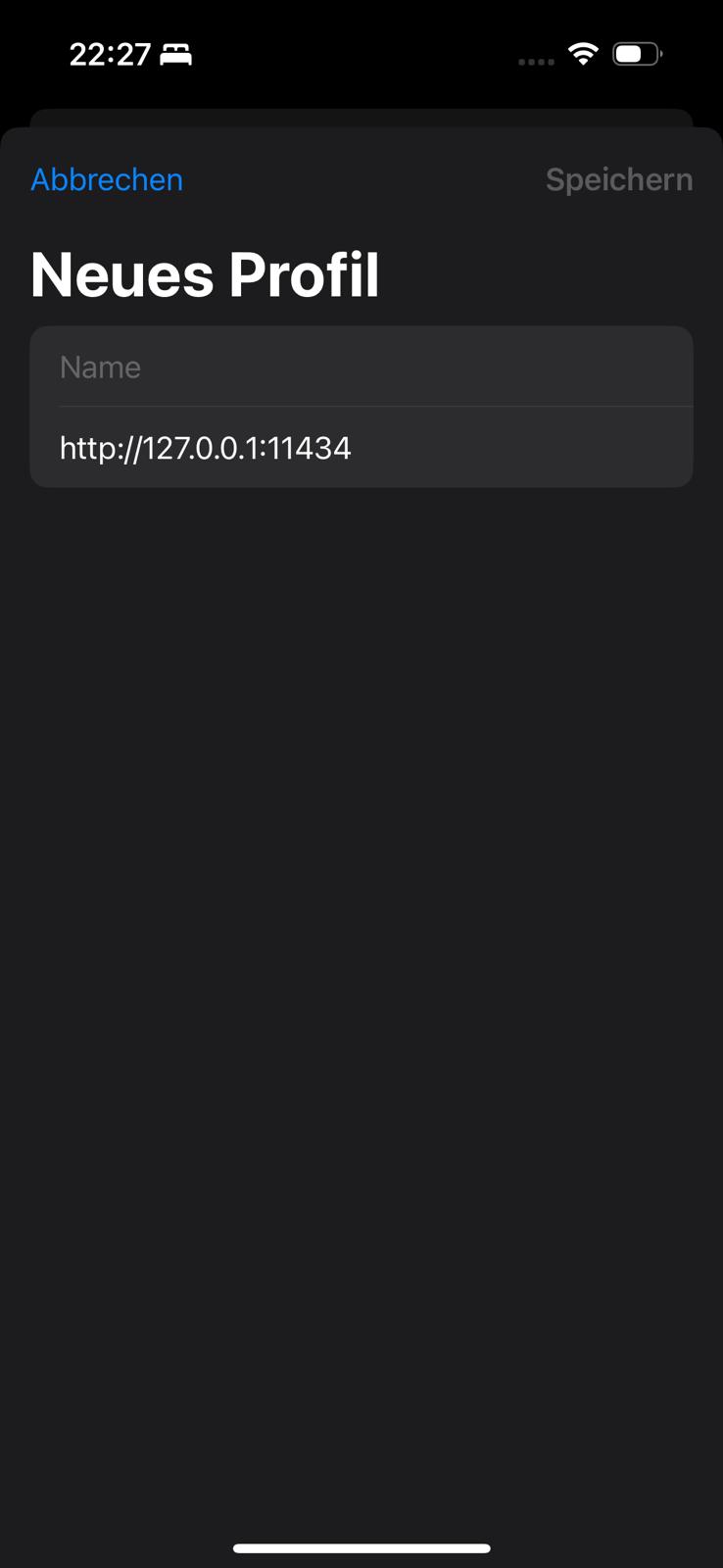
Server Profiles
Create different profiles for different servers. This way you can quickly switch between local Ollama and a remote server.
Create new server profile
7. Settings
Customize Local AI Hub to your needs.
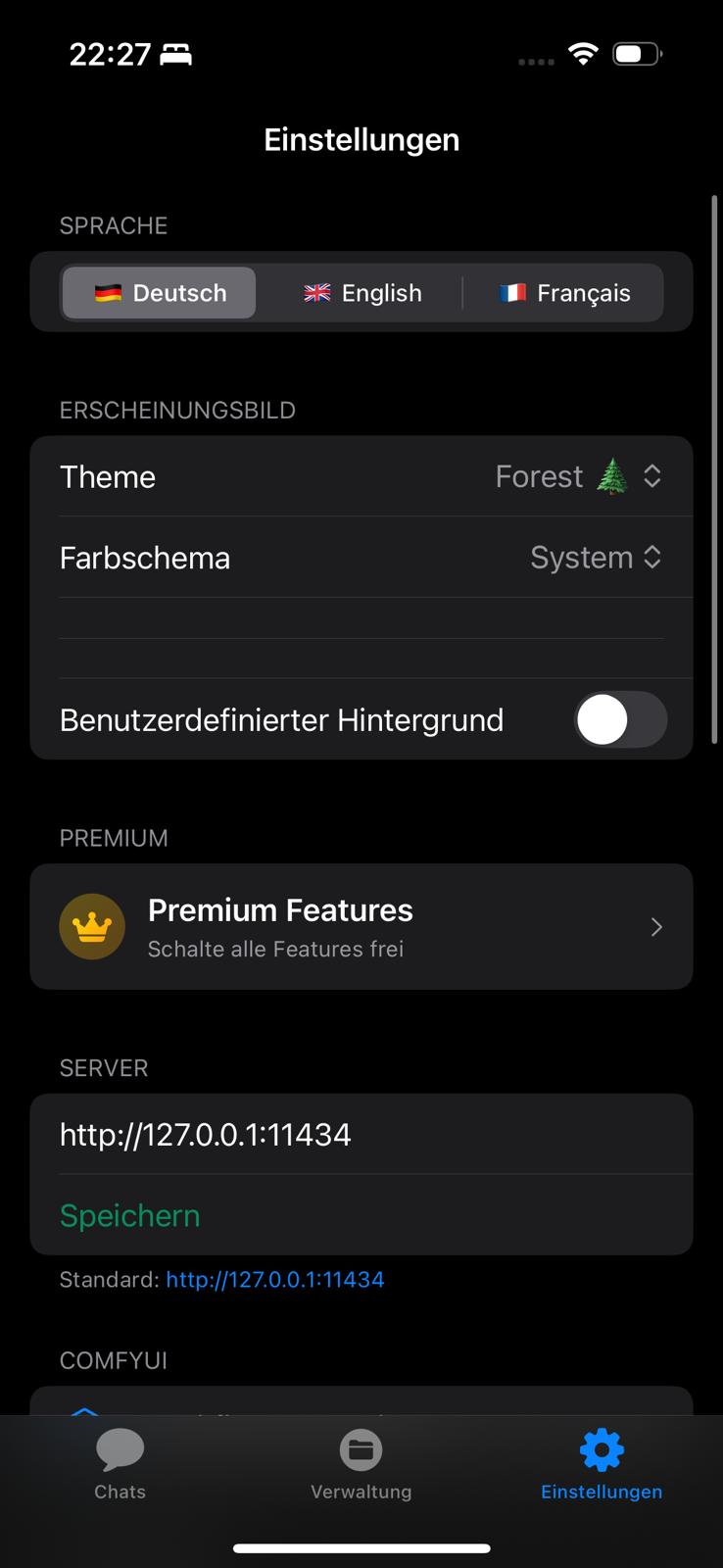
General settings
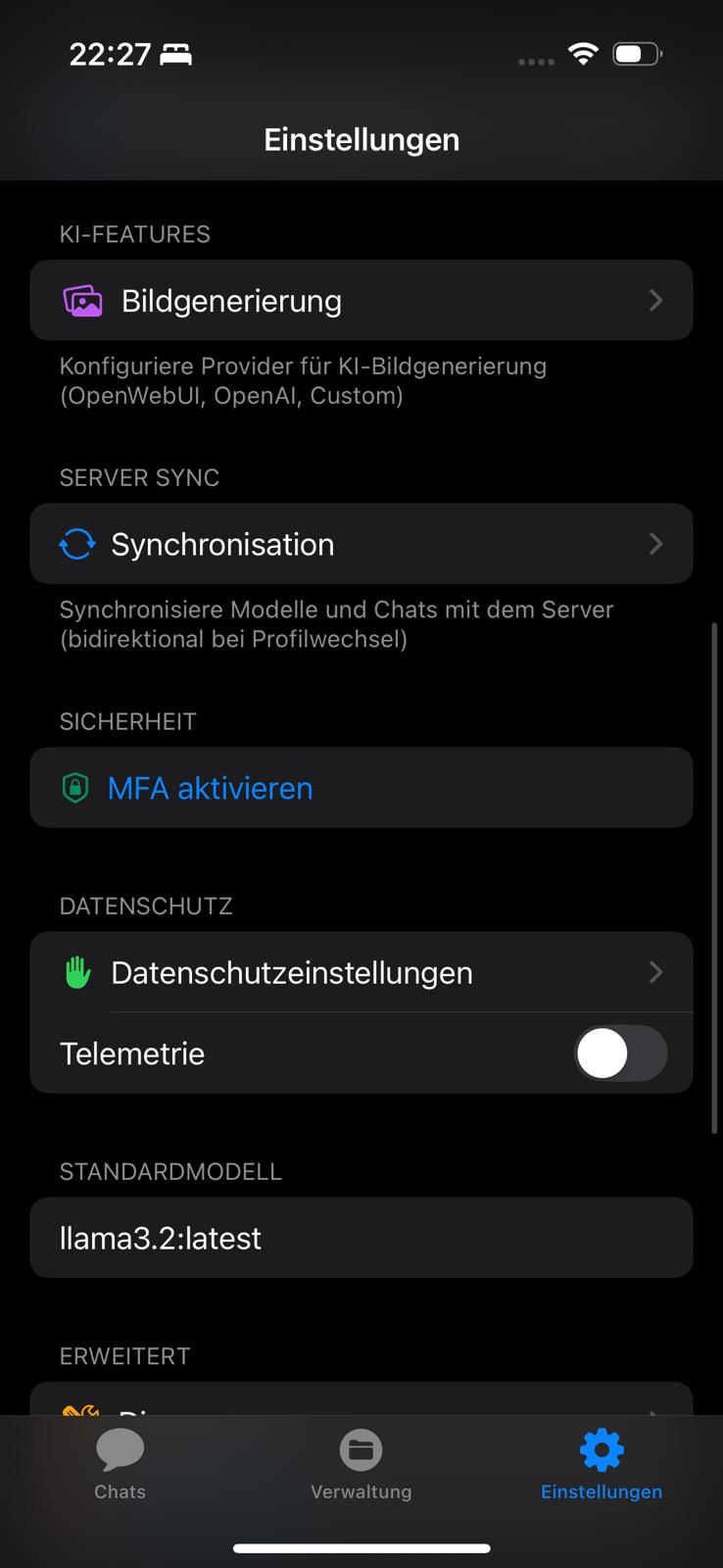
AI features and security
Language
Choose between German, English, and French.
Appearance
- Theme: Forest, Ocean, Sunset, Graphite
- Color Scheme: System, Light, Dark
- Custom Background: Use your own image
Security
- Enable MFA: Two-factor authentication
- Privacy Settings: Telemetry on/off
Diagnostics
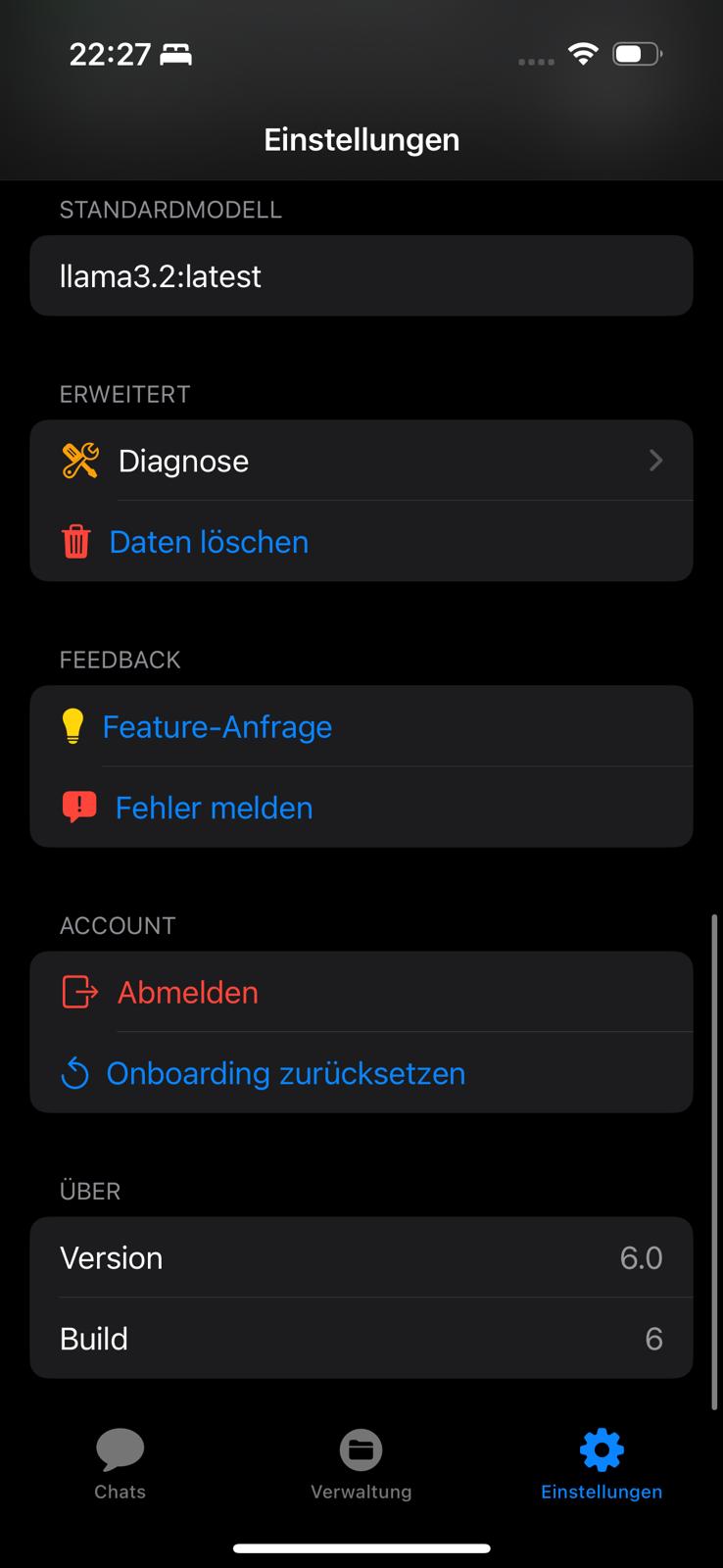
If you have problems, use the diagnostics feature. It shows server status, API endpoints, and permissions.
Server diagnostics
8. Synchronization
Sync your chats between app and server.
Bidirectional synchronization
Features
- Upload: Upload local chats to server
- Download: Save server chats locally
- Load Models: Fetch all available models
- Sync Chats: Automatic synchronization
9. Premium Features
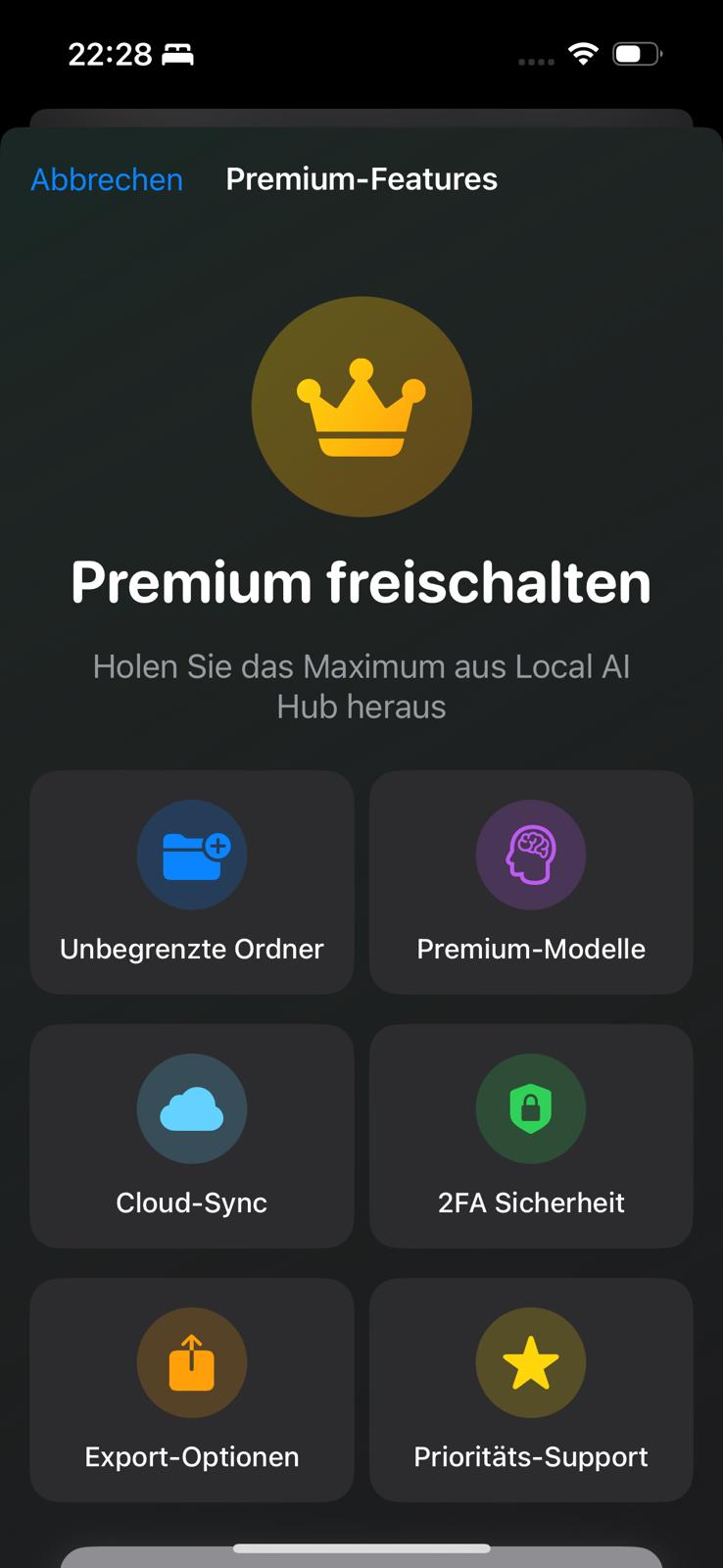
Unlock additional features with Premium.
Premium features
Premium Includes
- Unlimited Folders: Create as many folders as you want
- Premium Models: Access to extended models
- Cloud Sync: Synchronization via cloud
- 2FA Security: Two-factor authentication
- Export Options: Extended export functions
- Priority Support: Fast support for problems
10. Help and Support
Common Issues
Cannot connect to server
- Check if the server is running
- Use IP address instead of localhost
- Check firewall settings
Models not loading
- Pull down on chat list to refresh
- Check server status in diagnostics
Speech recognition not working
- Allow microphone access in iOS Settings
- Check in diagnostics under "Permissions"
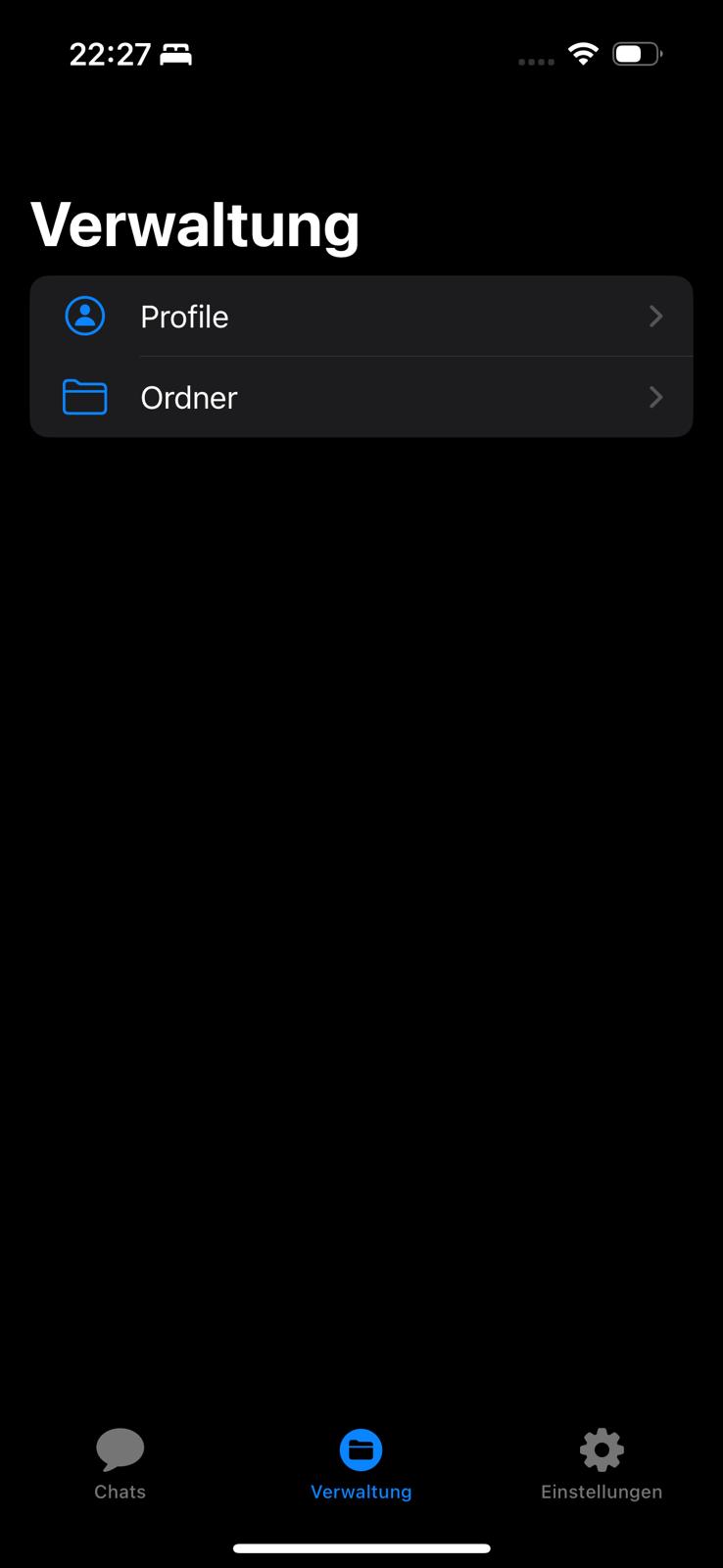
Feedback and Bugs
In settings you can find:
- Feature Request: Suggest new features
- Report Bug: Report problems
Feedback and support